Getting Started
Warepeak is a multi-company warehouse management web app: each company only ever sees its own data. This page covers how to log in, navigate the interface, and adjust your personal preferences — it doesn’t cover inventory or request concepts yet.
ℹ️ If this is your first time in Warepeak, read Roles and Permissions next to understand what you’ll see based on your role.
Logging in
- Go to
/auth/login/. - Enter your username/email and password, then click Log in.
- Warepeak takes you to your dashboard (
/app/), which varies depending on your role.
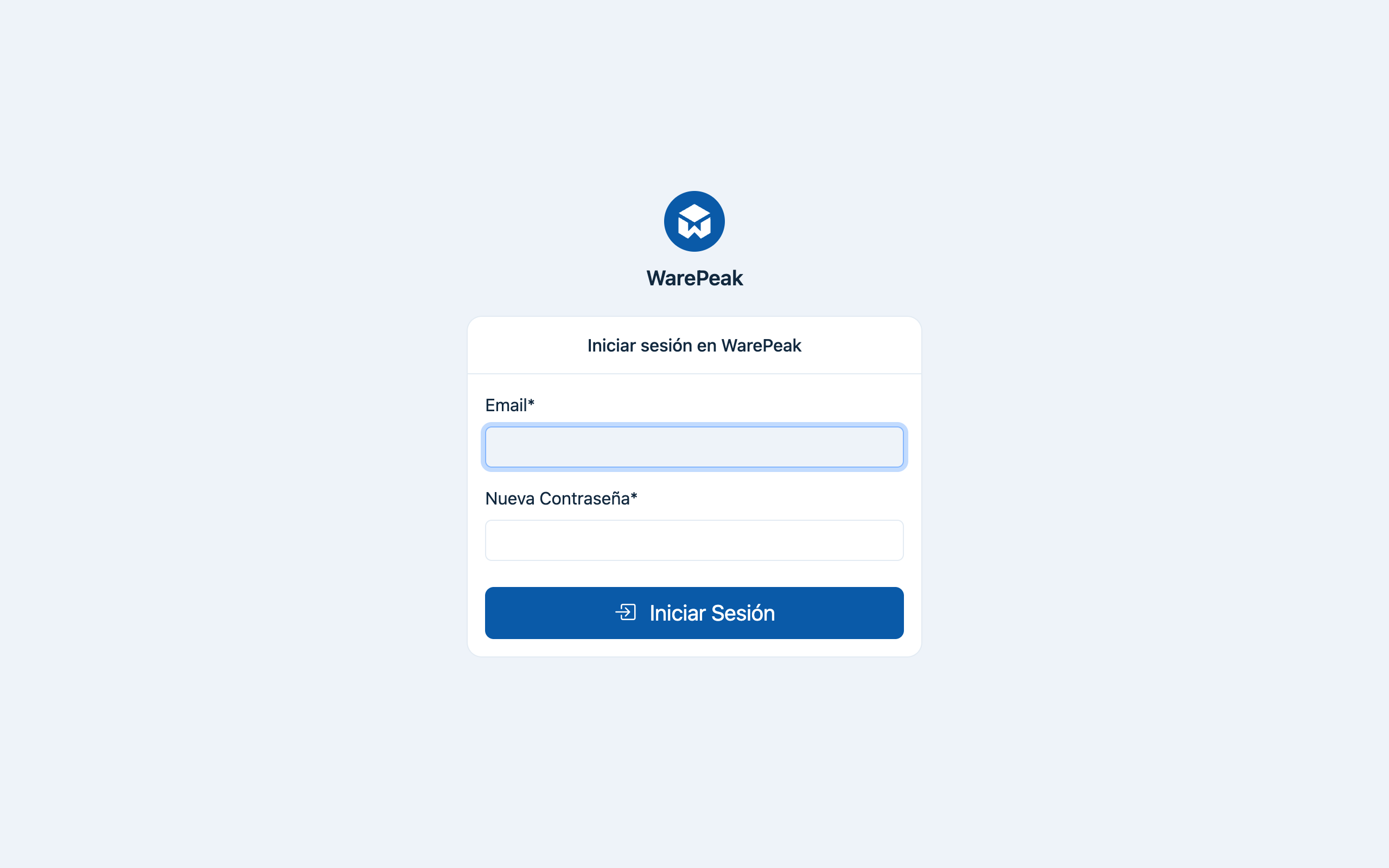
⚠️ If you don’t remember your password or your account doesn’t exist yet, contact your company’s Owner or Admin; user accounts are created from inside the app.
The interface: sidebar and top bar
- The sidebar shows the sections you have access to; its contents change based on your role (see Roles and Permissions).
- The top bar includes your company name, a link to your profile, and the light/dark mode switch.
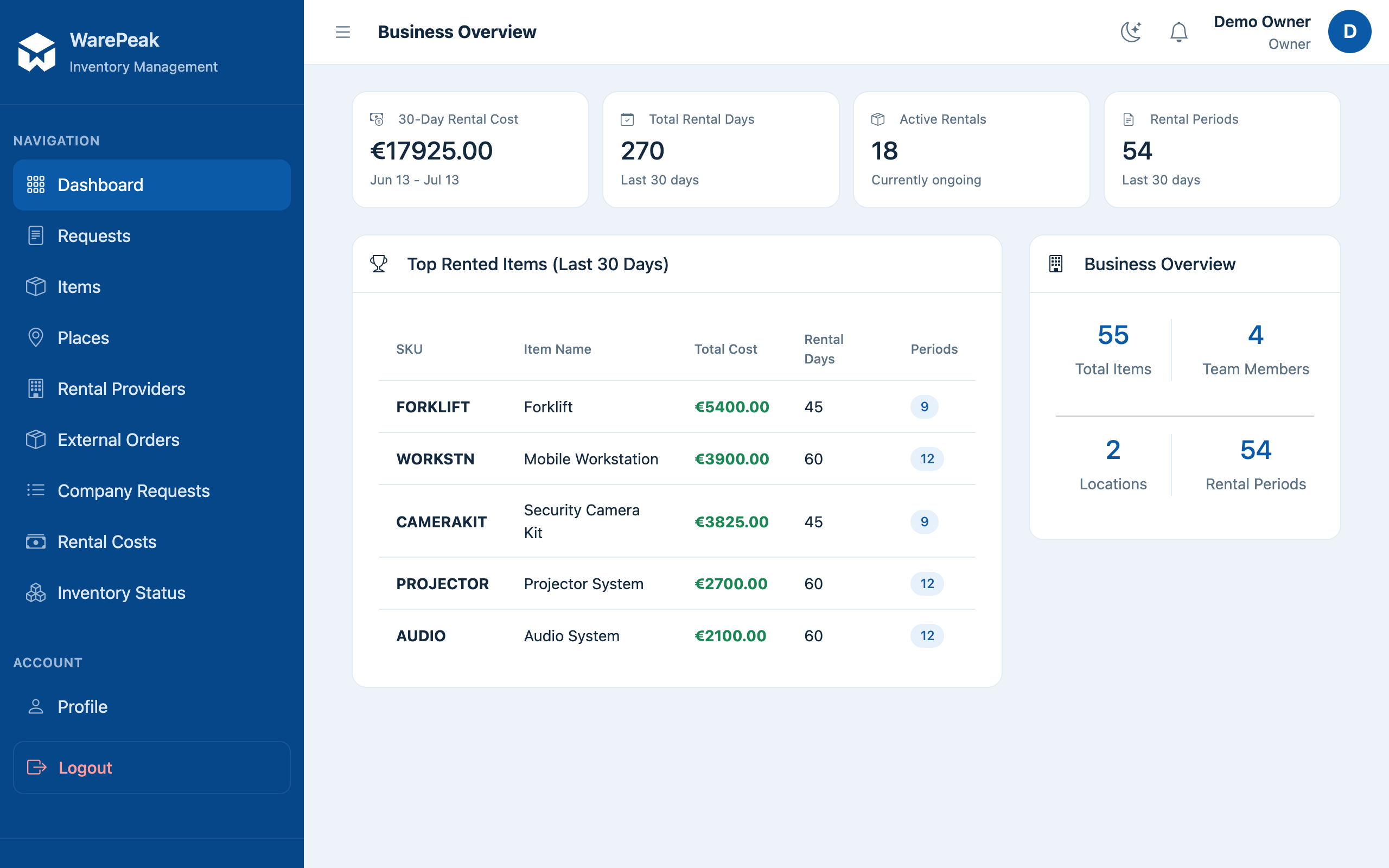
Light/dark mode
Click the moon/sun icon in the top-right corner to switch between light mode and dark mode. The preference is remembered for your next visits.
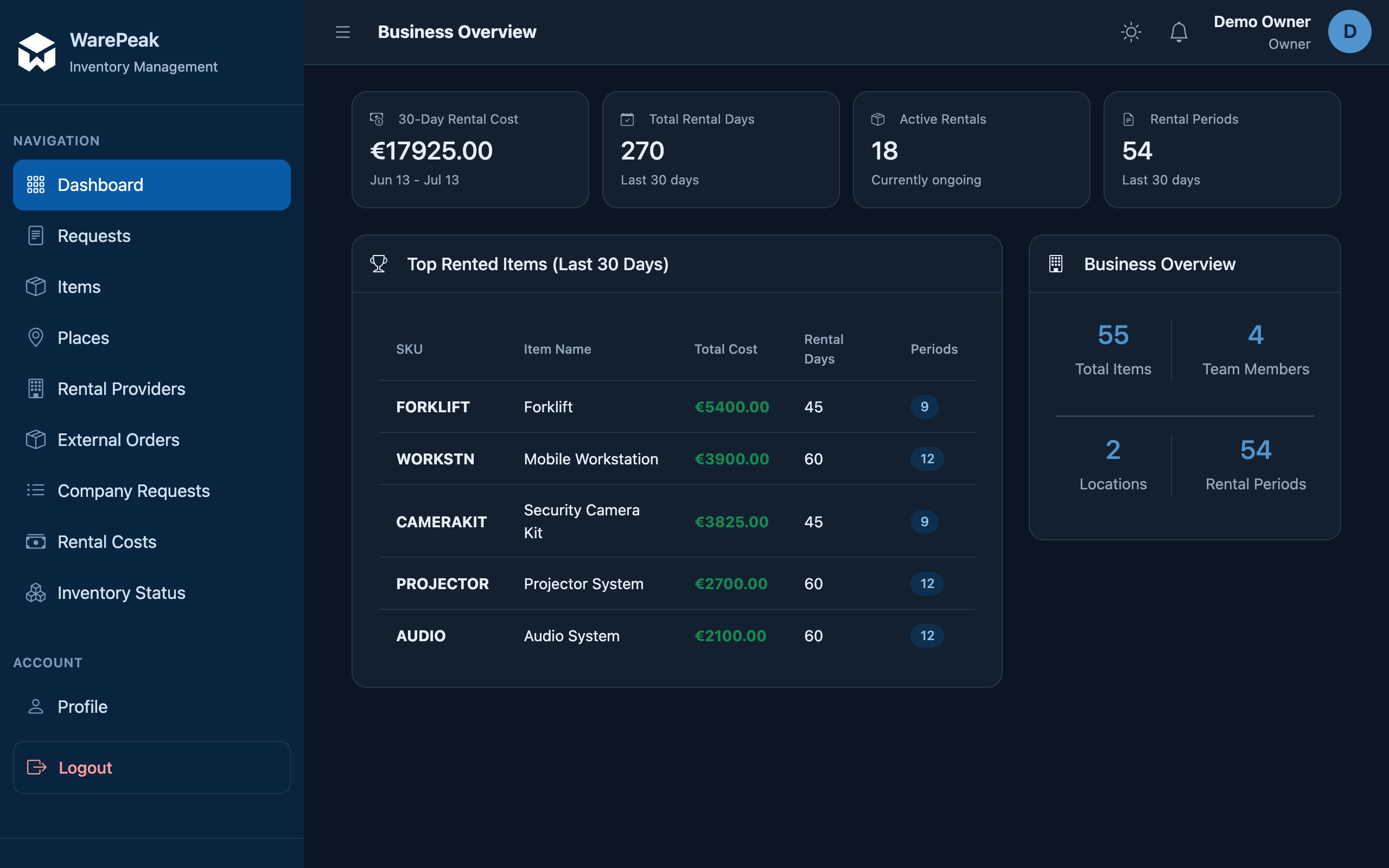
Mobile menu
On small screens the sidebar is hidden:
- Tap the hamburger icon (☰) to open it.
- Close it with the × icon or by pressing Esc.
Your profile
- Profile (
/app/profile/): view and edit your personal details. - Personal language (
/app/profile/language/): choose the language you want to see Warepeak in. If left empty, your company’s default language is used. - Change password (
/app/profile/change-password/): update your login password.
ℹ️ Your personal language only affects you; the Owner or Admin can set the default language for the whole company (see Roles and Permissions).