Approve a request
Warehouse Managers approve or reject ship and pickup requests; Owners and Admins can too.
ℹ️ Approving a ship request moves units from the warehouse to the destination place. Approving a pickup request does the reverse: from the place back to the warehouse (return). In both cases, the movement is recorded in the item’s history.
Steps
-
Go to Approve Requests on your dashboard, or open
/app/manager/requests/directly. You’ll see the queue of your company’s pending requests.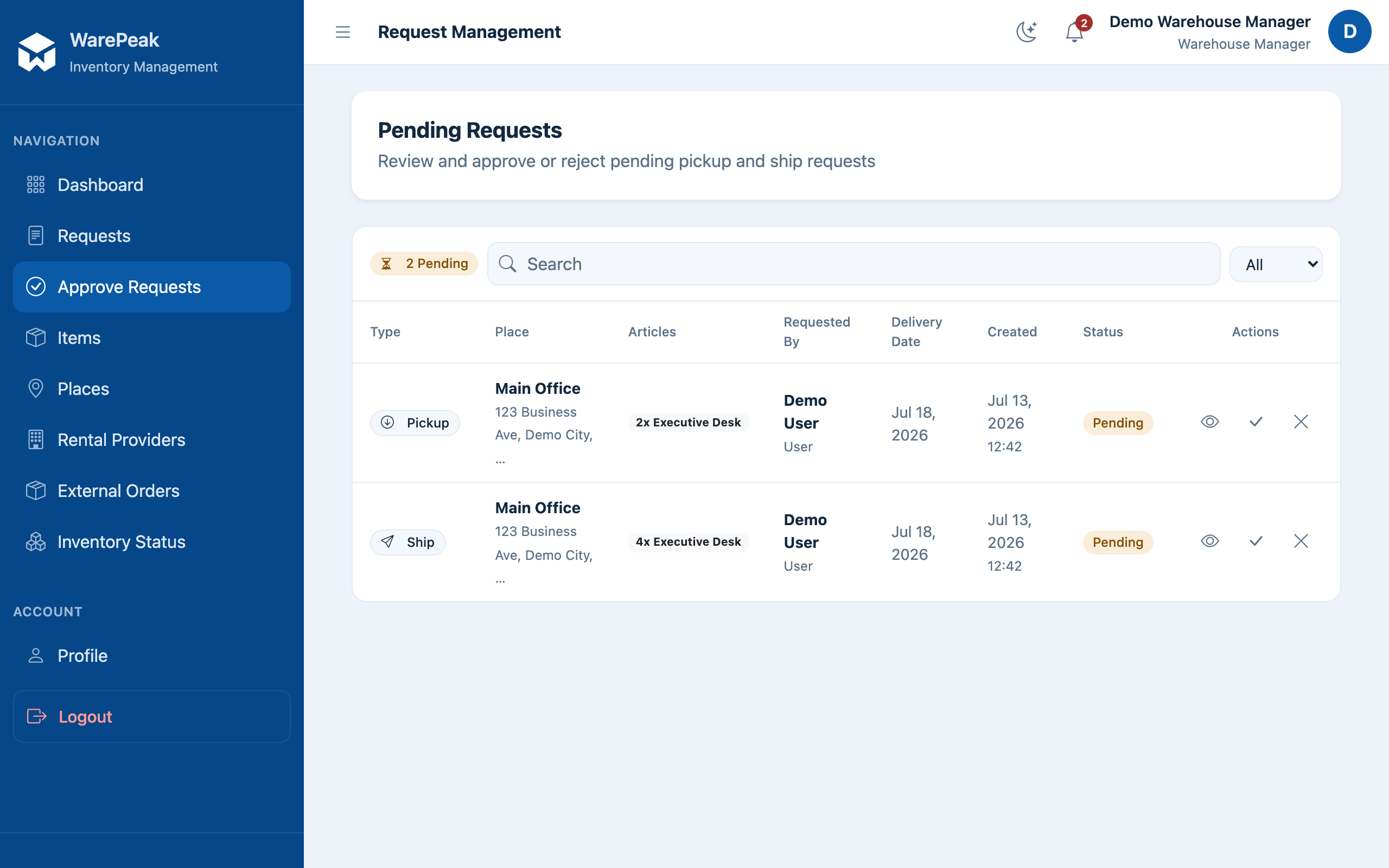
-
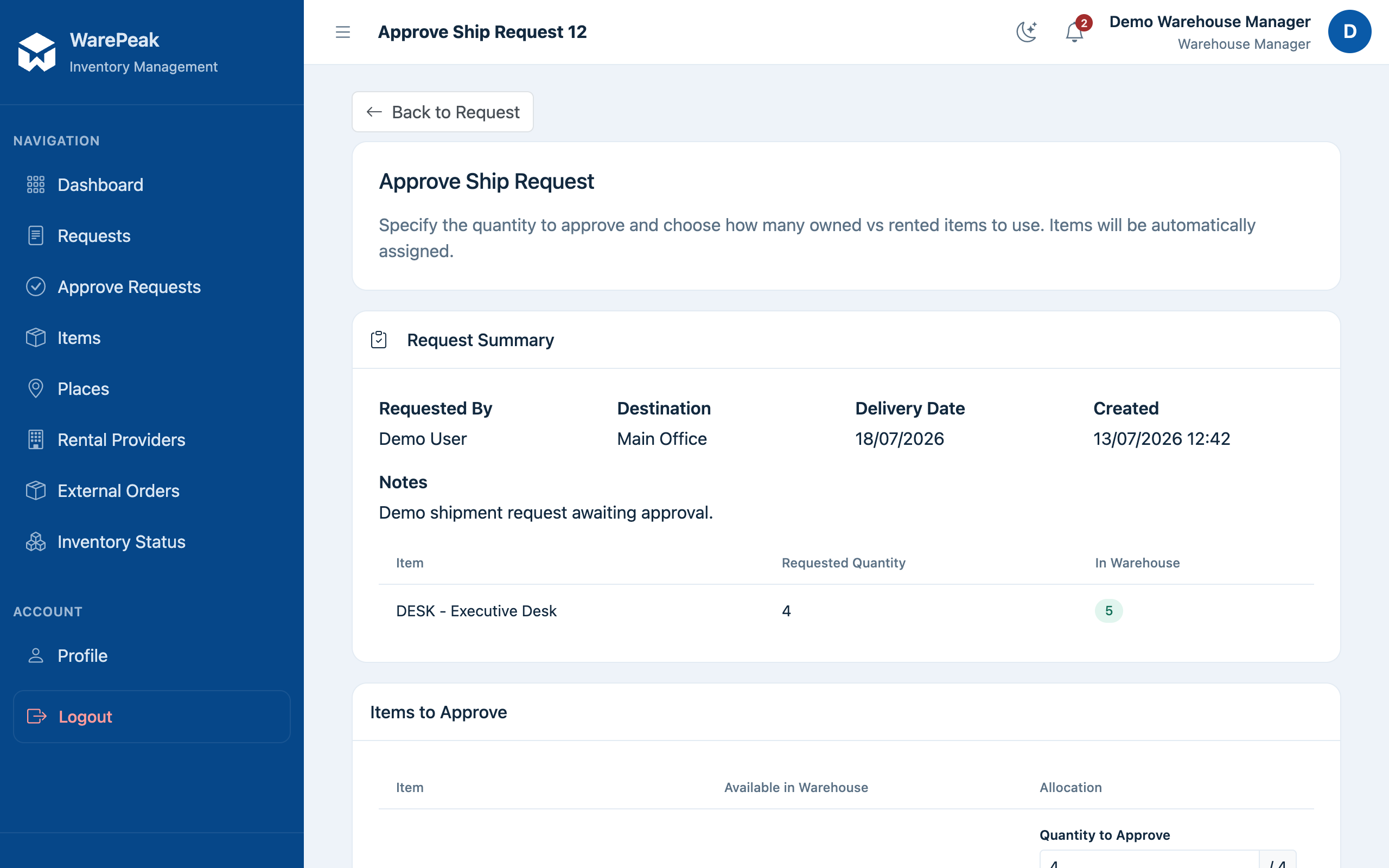
Click the request you want to review to open its detail page (
/app/manager/requests/ship/<id>/for ship requests; the equivalent.../pickup/<id>/for pickup requests). -
Read the Request Summary card: who requested it, the destination place (or origin place, for pickups), the delivery date, and for each item type, the Requested Quantity versus the In Warehouse quantity available.
-
For each item type, set how much you’re approving:
- Fill in Quantity to Approve (it can be equal to or less than the requested quantity).
- Split that quantity between Use Owned Items and Use Rented Items. Both fields must add up exactly to the Quantity to Approve, and neither can exceed the available quantity of that type.
-
Click Approve (
/app/manager/requests/ship/<id>/approve/, or the pickup equivalent) to confirm. The corresponding units move to the destination and the movement is recorded.
⚠️ If you approve less than the requested quantity for one or more items, the original request moves to Partially fulfilled status and Warepeak automatically creates a new Pending request for the remaining quantity, so you can review it later. See Request Lifecycle for details.
Reject a request
If you’re not going to fulfill the request, you can reject it instead of approving it. A rejected ship request moves to Rejected; a rejected pickup request moves to Cancelled.
Edit the delivery date
While a request is Pending, Warehouse Managers, Owners, and Admins can edit its Delivery Date before approving or rejecting it.
After approving
- To understand the Warehouse, Owned, and Rented states of an item, see Inventory model.
- To understand the full lifecycle of a request (pending, full approval, partial approval, or rejection), see Request Lifecycle.