Create a pickup request
A pickup request asks for items to be picked up from your place and returned to the warehouse. It’s normally used to return rented units once you no longer need them at the place. Any User assigned to a place can create one, and so can Warehouse Managers, Owners, and Admins.
ℹ️ The item picker only offers you the types that are currently at the place you’ve selected. If you don’t see any items, try switching places or check with your Warehouse Manager what’s located there.
Before you start
To create a pickup request you need at least one assigned place: as a User, the dropdown only shows the places you’re registered at. If you have none assigned, ask your Warehouse Manager to assign you one (see Manage places).
Steps
-
Go to My Requests and click New Pickup Request, or open
/app/requests/pickup/create/directly. The Request Information form opens.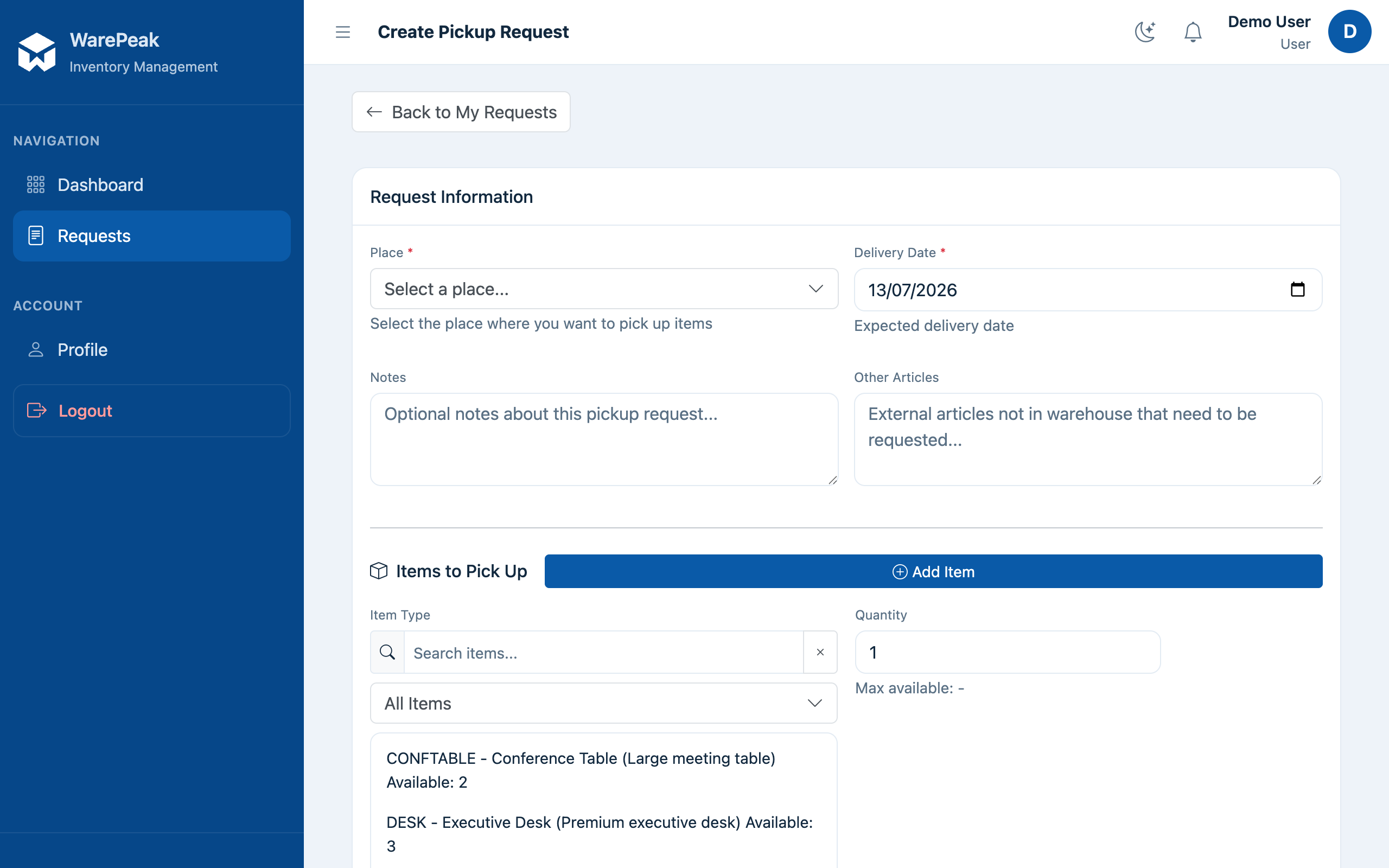
-
Choose the Place you want to pick up material from. The dropdown only shows the places you’re assigned to (as a User) or every active place in your company (Warehouse Manager, Owner, or Admin).
-
Add the items to pick up, one row at a time:
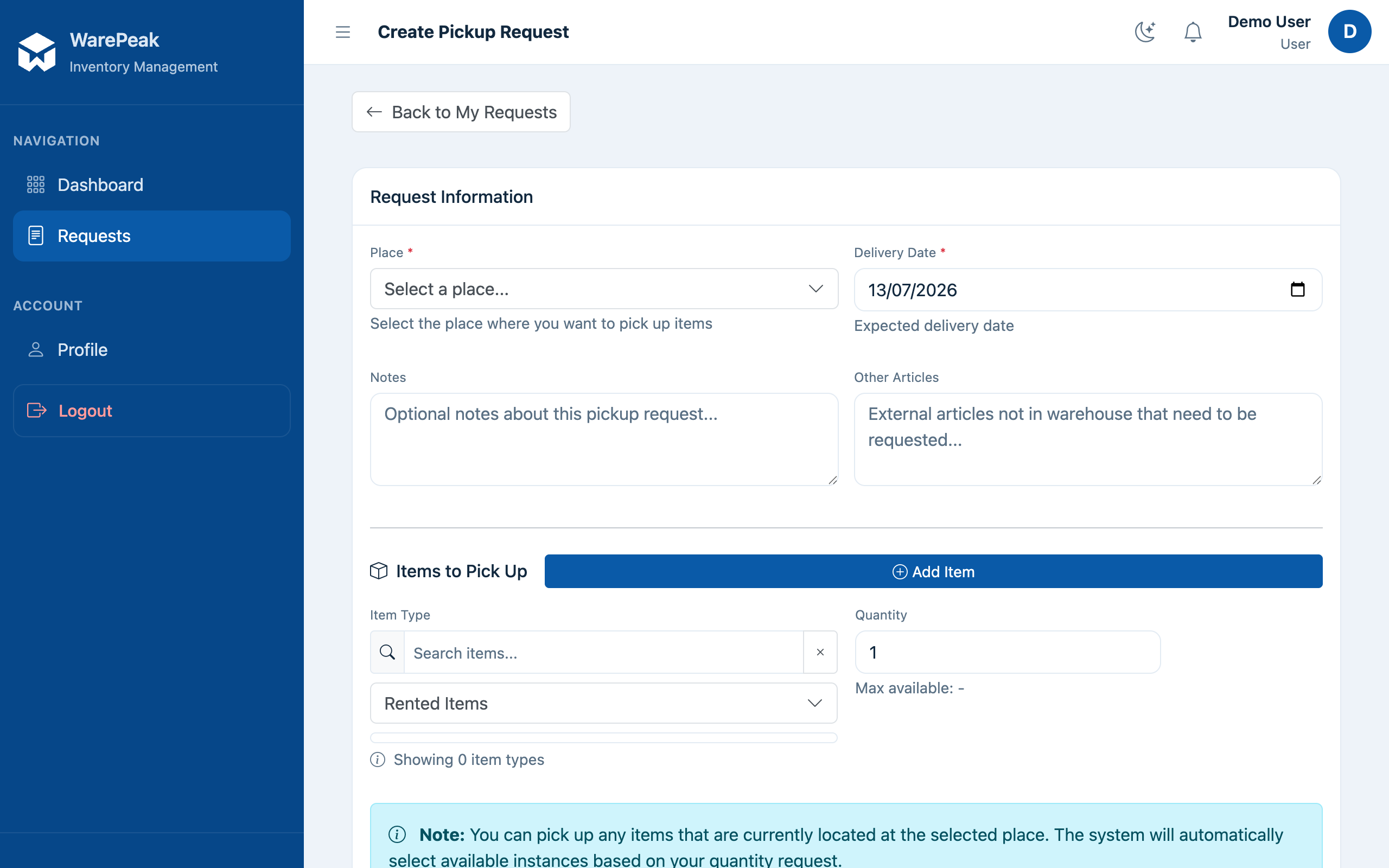
- In Item Type, type in the search box (“Search items…”) to filter by SKU, name, or description. Narrow it down further with the All Items / Owned Items / Rented Items filter. Only the types currently at the chosen place appear.
- Click an item type in the list to select it. The row collapses into a compact chip showing the chosen type; click Change to reopen the picker and choose a different one.
- Fill in Quantity.
- Click Add Item to add another row. To remove a row, use that row’s trash icon.
-
Check the Summary panel at the bottom of the form: confirm the place and the list of items with their quantities before submitting.
-
Click Create Pickup Request. The request is created with Pending status and Warehouse Managers at your company are automatically notified. You’ll land back on your dashboard, and you can see it under My Requests.
After you create the request
- While the request is Pending, you can edit or delete it. Once a Warehouse Manager approves it (fully or partially) or rejects it, it’s no longer editable.
- Once approved, the picked-up units return to the warehouse; if they were rented, this can close their rental period (see Manage inventory).
- To understand what happens next to your request (full approval, partial approval, or rejection), see Request Lifecycle.
- To understand what it means for an item to be “in the warehouse” versus “at a place” or “rented”, see Inventory model.