External rentals
External rentals let you request items from a rental provider when you don’t have your own stock and need to cover a ship request or another one-off need. Warehouse Managers, Owners, and Admins can manage providers and external orders; deleting a provider is reserved to the Owner or Admin.
ℹ️ Rented items are marked with the RENTED ownership in the inventory model. See Inventory model to understand the difference from WAREHOUSE or OWNED items.
Manage rental providers
-
Go to Rental Providers, or open
/app/rental-providers/directly. You’ll see the list of providers with their name and contact details.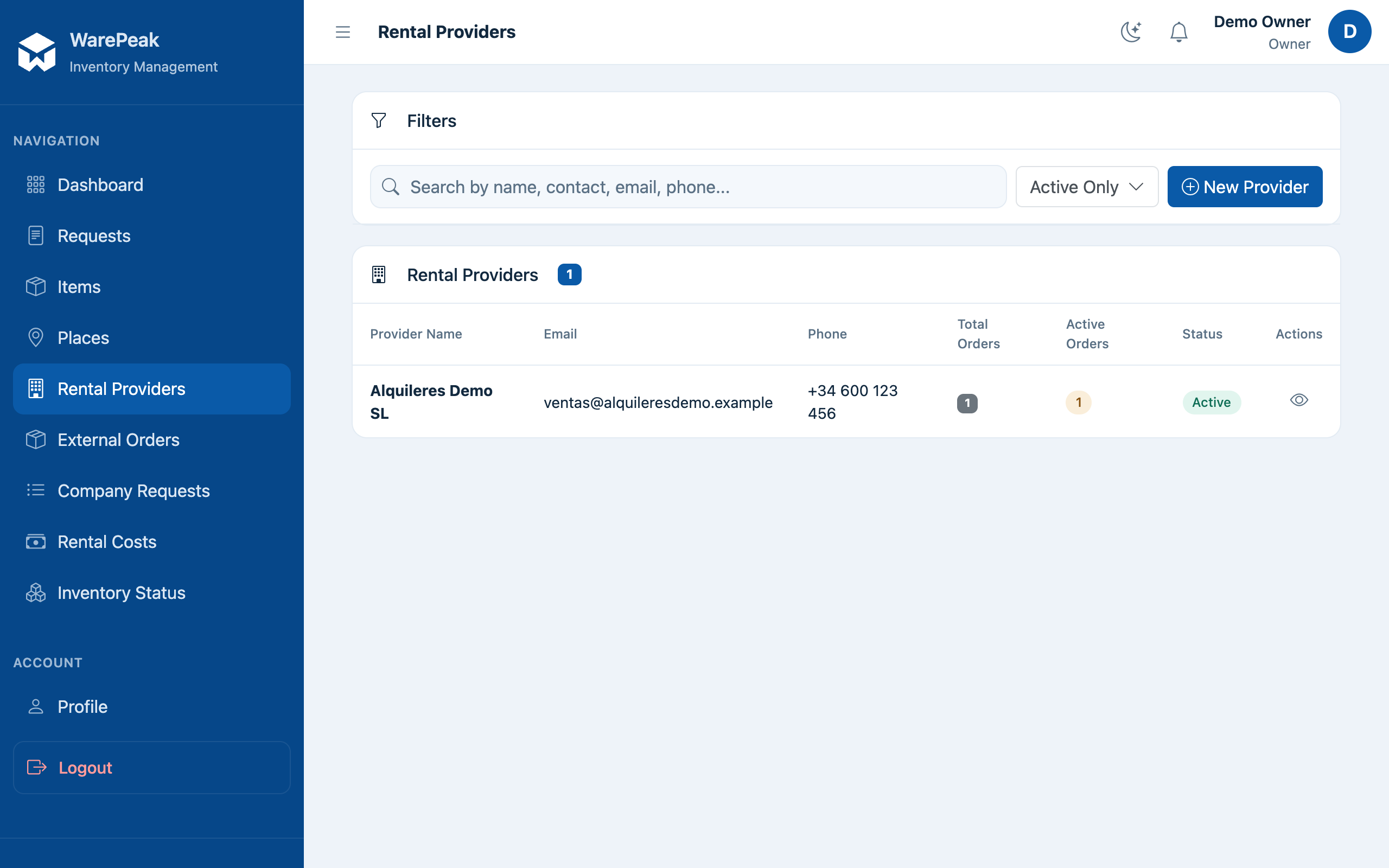
-
Click New Provider to create one. Fill in the required data (name, contact, etc.) and click Save.
-
Click a provider in the list to open its detail page, where you’ll see its data and the orders associated with it.
-
To edit a provider, open its detail page and click Edit; update the fields and click Save.
Delete provider
⚠️ Only the Owner or Admin can delete a provider.
- From the provider’s detail page, click Delete and confirm the action when prompted.
Create an external order
-
Go to External Orders, or open
/app/external-rental-orders/directly. You’ll see the list of orders with their provider, status, and cost.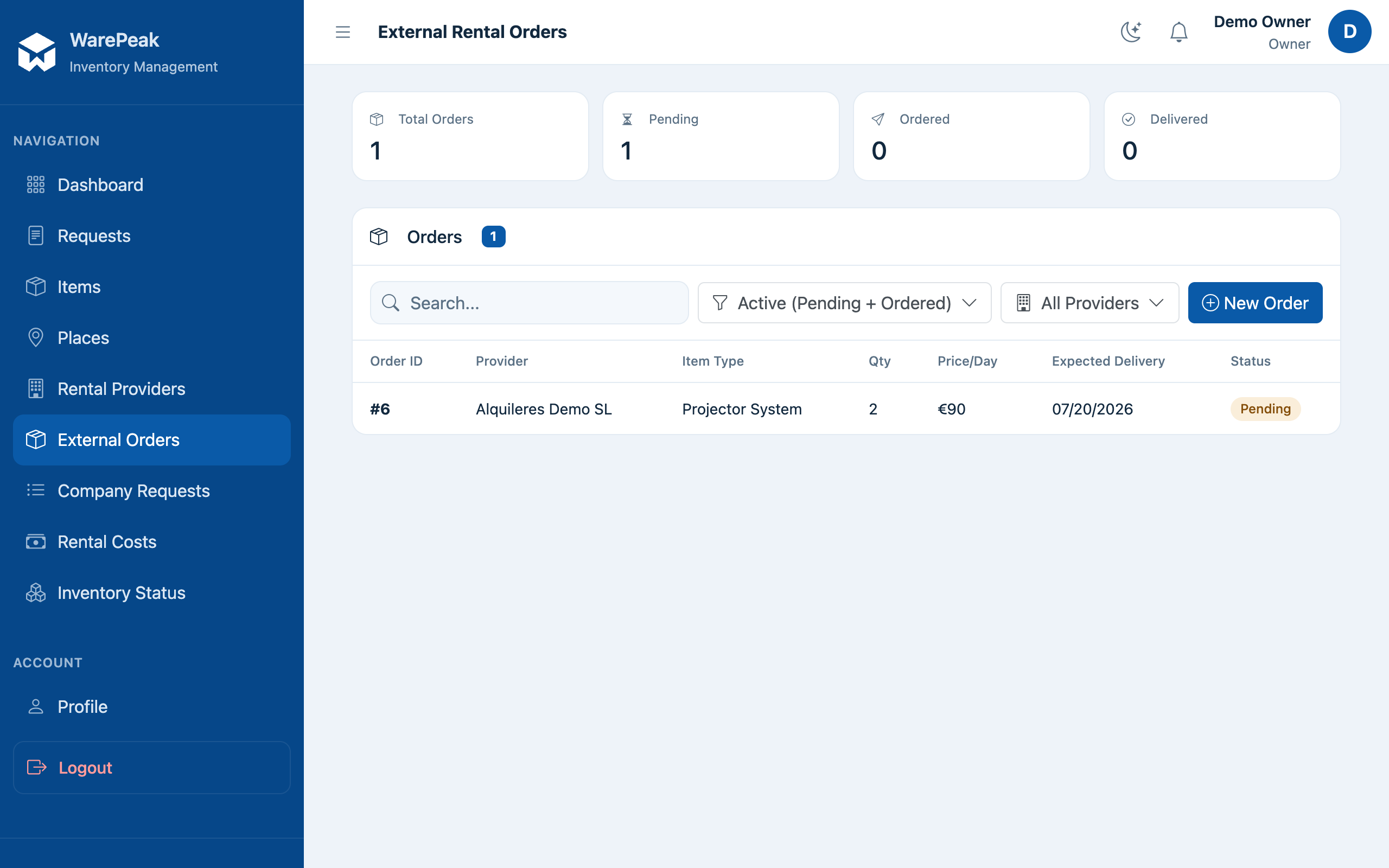
-
Click New Order, or open
/app/external-rental-orders/create/directly. The creation form opens. -
Choose the Provider, the Items to order with their quantities, the Price/Day, and the rental dates.
-
Optionally, link the order to an existing ship request; if you do, marking the order as delivered will automatically send the units to that request’s place.
-
Click Save (or Create Order). The order is created with Pending status.
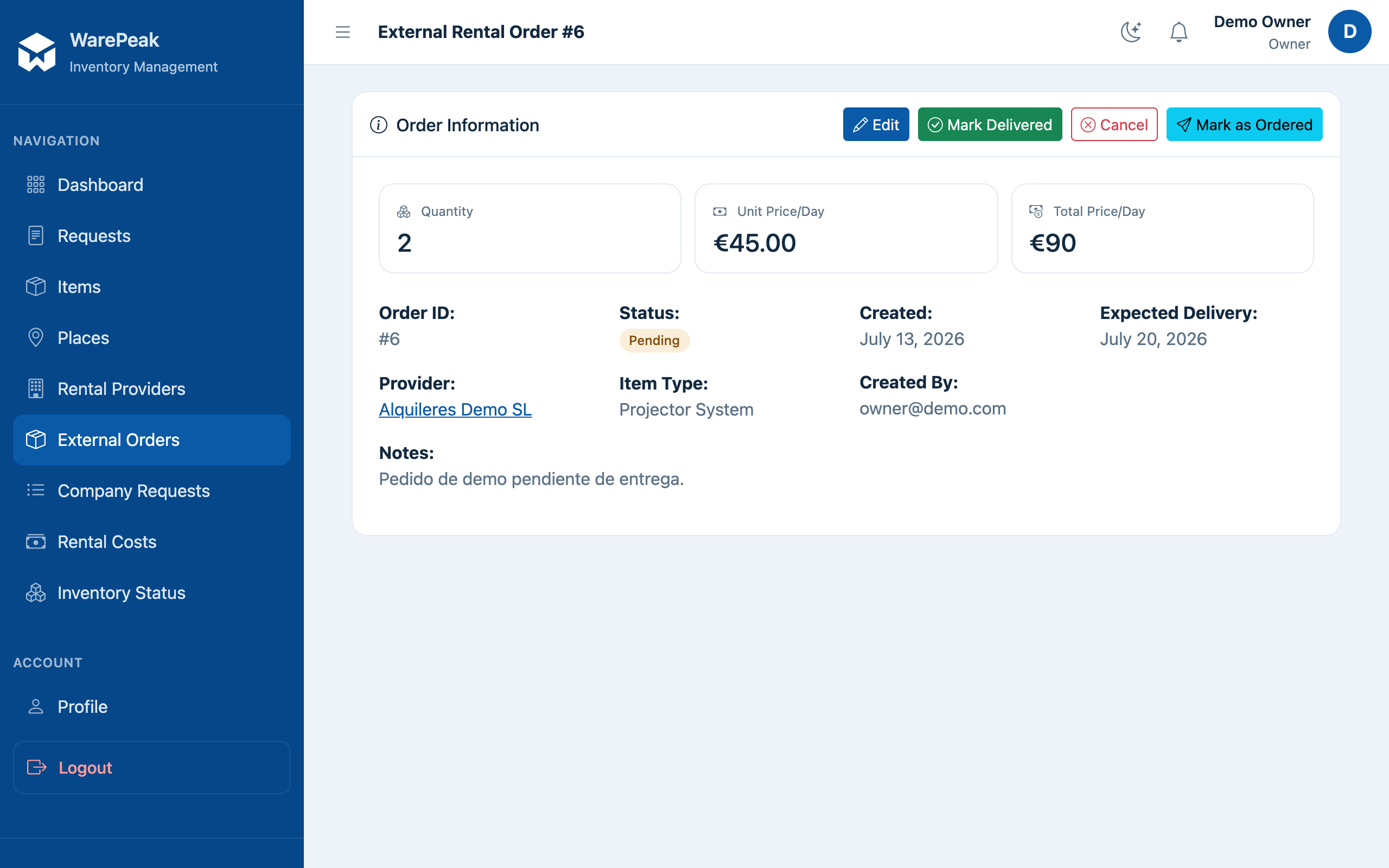
An order’s status cycle
-
From Pending, mark the order as Ordered once you’ve confirmed it with the provider, using the corresponding button on its detail page.
-
When the provider delivers the material, click Mark Delivered, or open
/app/external-rental-orders/<id>/mark-delivered/directly.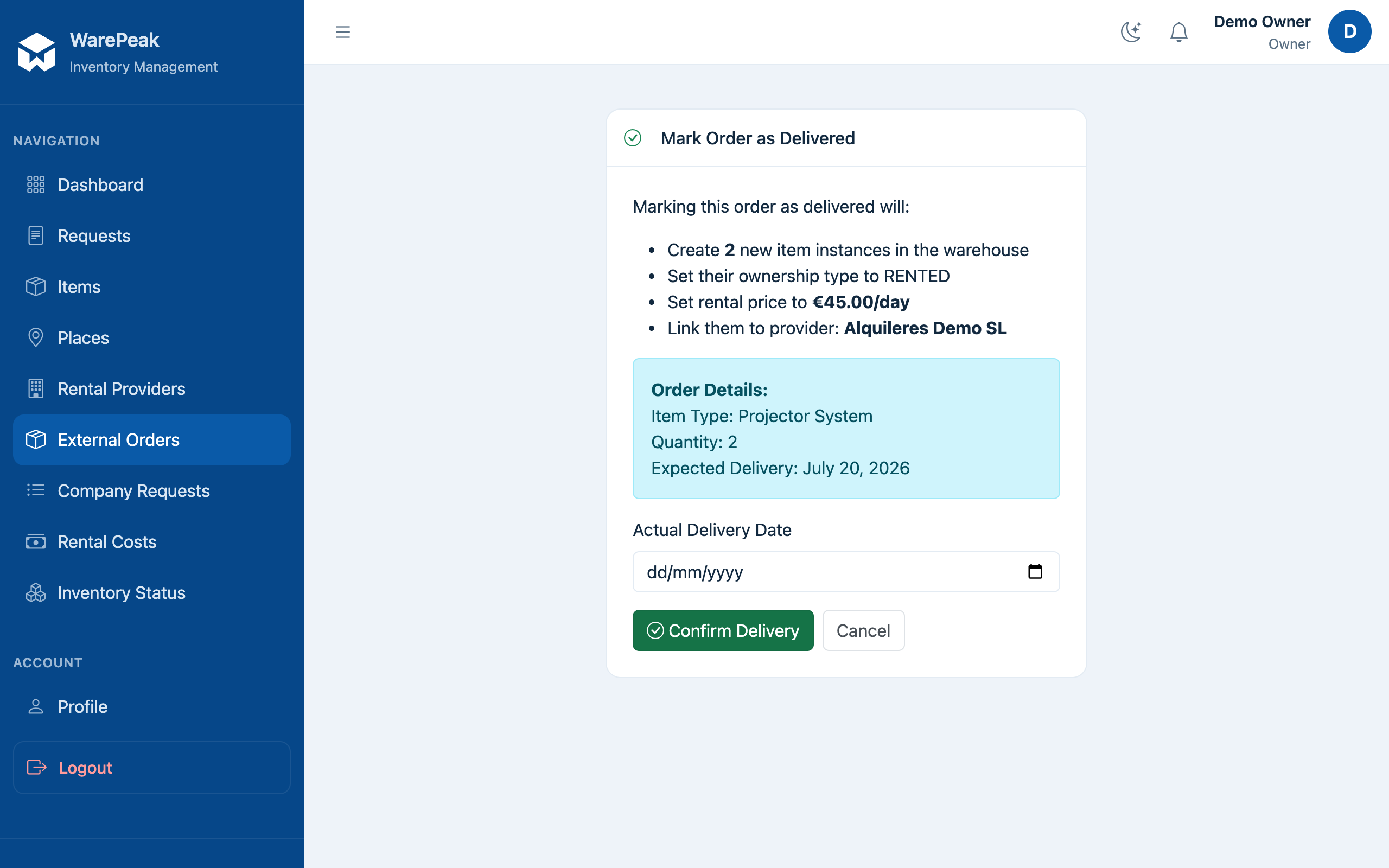
ℹ️ When an order is marked as delivered, Warepeak automatically creates the rented units in the warehouse, associated with the provider and with the given price/day. If the order is linked to a ship request, the units are sent directly to that request’s place; once every order linked to the request has been delivered, the request moves to Delivered status.
-
If the order is no longer needed, click Cancel instead of marking it as delivered.
⚠️ The order’s cost is calculated as days × price/day, and is recalculated if you change the rental dates.