Manage inventory
This guide covers the everyday inventory management tasks: creating items, adding units, moving units between the warehouse and places, and checking their history. Only Warehouse Managers, Owners, and Admins have access to these screens.
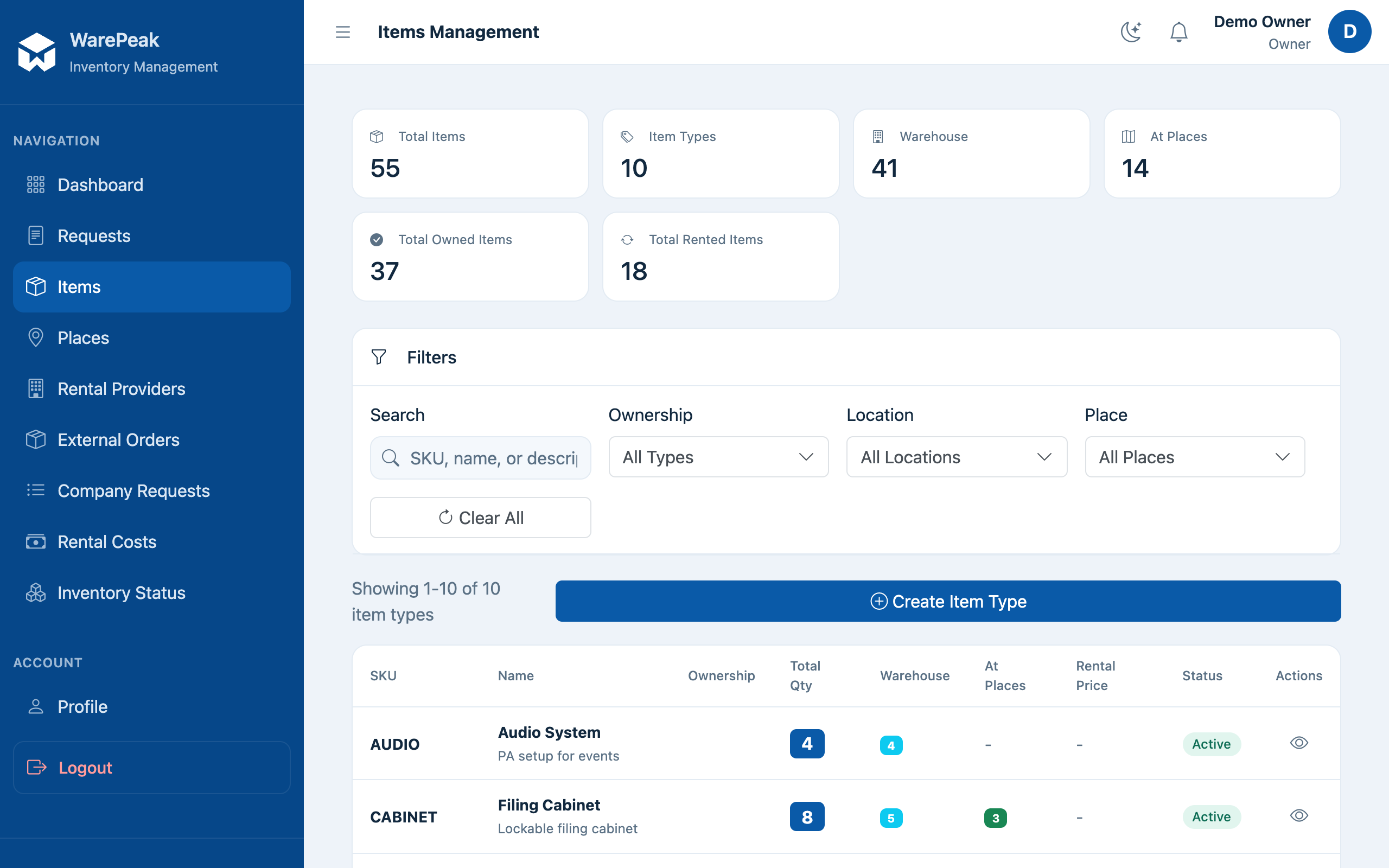
View items and item types
- Items (
/app/items/): lists every individual inventory unit at your company. - Item Types (
/app/item-types/): lists the item types/models (the “catalog”), regardless of how many units each one has.
Create a new item
- Go to Items and click New Item, or open
/app/items/create/directly. - Fill in the item type’s details (name, SKU, description, etc.) and save.
- Warepeak creates the item type and, at the same time, its first unit, recorded as Owned (
OWNED) and located in the warehouse.
ℹ️ To add more units of the same type later, don’t repeat this step: use Add Unit on the existing item type instead (see below).
Add units to an existing item type
- Open the item type from Item Types and go to Add Unit (
/app/item-types/<id>/add-instance/) to add a single unit, or Bulk Add Units (/app/item-types/<id>/bulk-add-instances/) to add several at once. - Fill in the requested details (quantity, for the bulk option) and confirm.
Move a unit
- From the item’s detail page, go to Move (
/app/items/<id>/move/). - Choose the action:
- Send: moves the unit from the warehouse to a place you select.
- Return: moves the unit back to the warehouse.
- Confirm the move. It’s recorded in the unit’s history.
To move several units at once, use Bulk Move (/app/items/bulk-move/).
⚠️ Moving a rented (
RENTED) unit to a place starts accruing rental cost; returning it to the warehouse closes the corresponding rental period. Rented units are only created through delivered external rental orders: see External rentals.
Check a unit’s history
From the item’s detail page, go to History (/app/items/<id>/history/) to see every recorded movement for that unit: shipments, returns, and ownership changes.