Manage places
Places represent the locations (clients, sites, facilities) where items can be held and from which Users request material. Any Warehouse Manager, Owner, or Admin can view the list and detail of places; creating or editing a place is reserved to the Owner or Admin.
ℹ️ To understand what it means for an item to be in the warehouse, assigned to a place, or rented, see Inventory model.
View the list of places
-
Go to Places in the menu, or open
/app/places/directly. You’ll see the list of places at your company, with name, address, and status (active/inactive).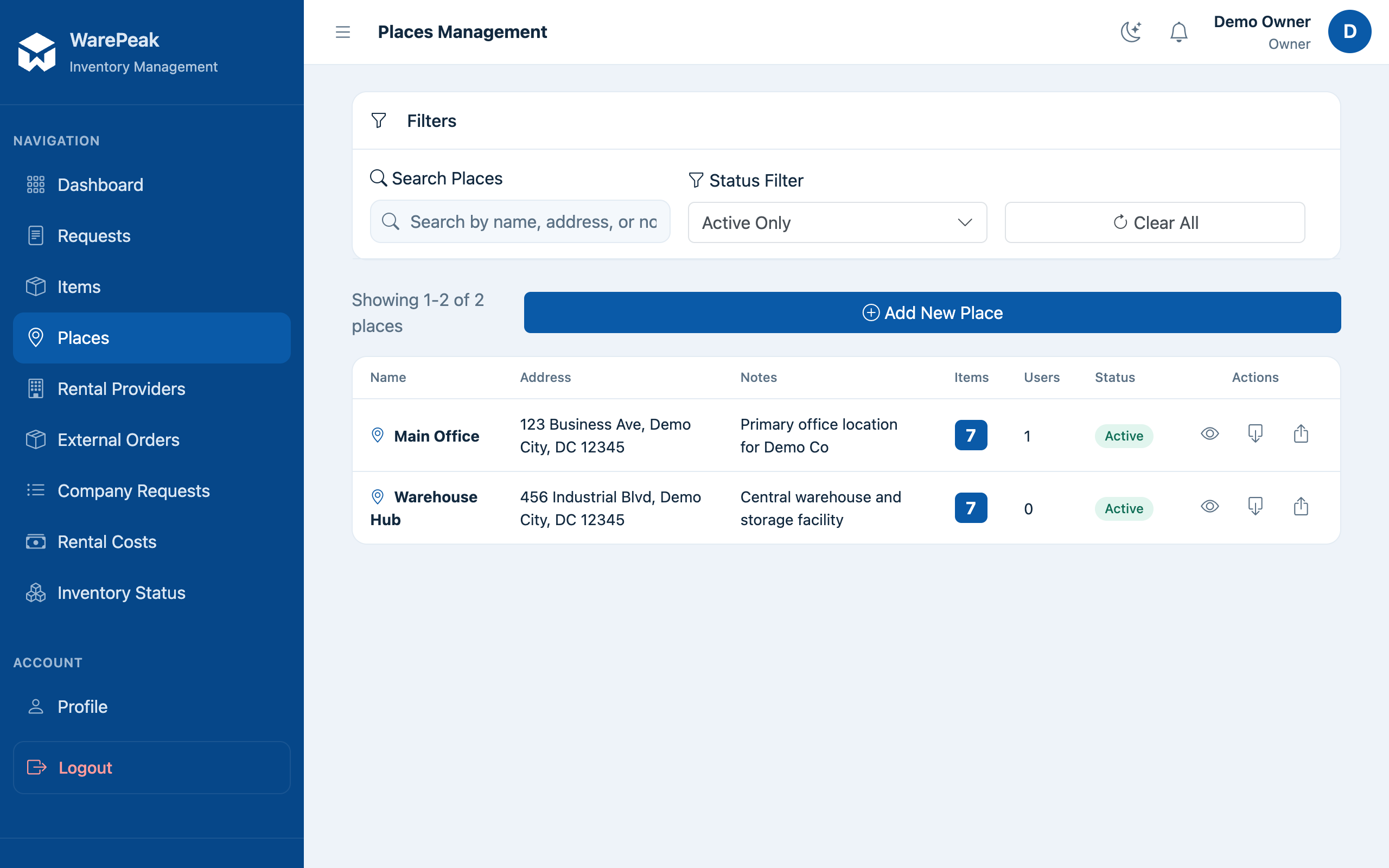
-
Click a place in the list to open its detail page at
/app/places/<id>/.
View a place’s detail
-
On the place’s detail page (
/app/places/<id>/) you’ll see the general information (name, address, notes) and the place’s current inventory, grouped by item type with quantities.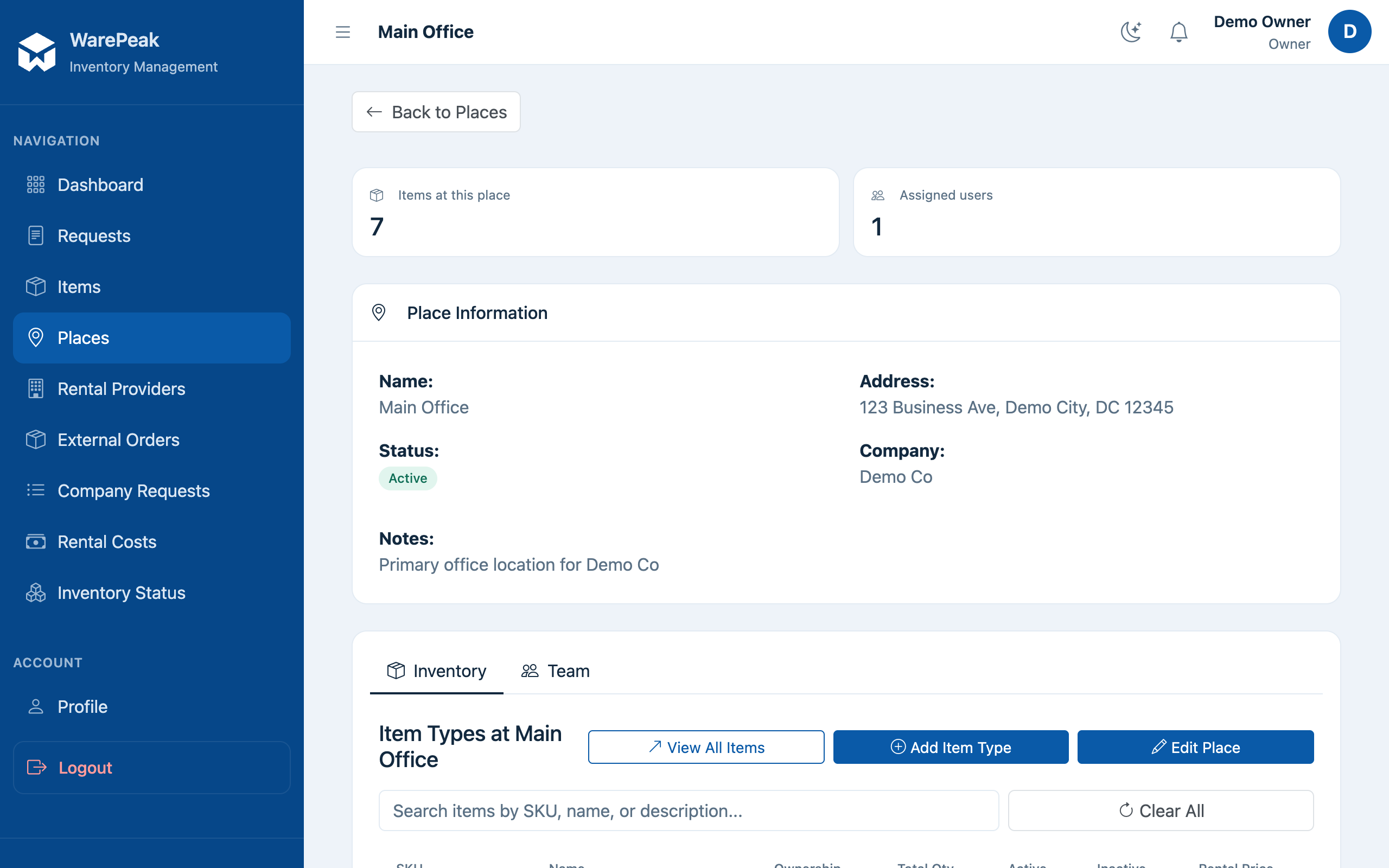
-
Further down on the same page you’ll find the section for users assigned to this place (see Assign users).
Create a place
⚠️ Only the Owner or Admin can create places.
-
From the list (
/app/places/), click New Place, or open/app/places/create/directly. The creation form opens.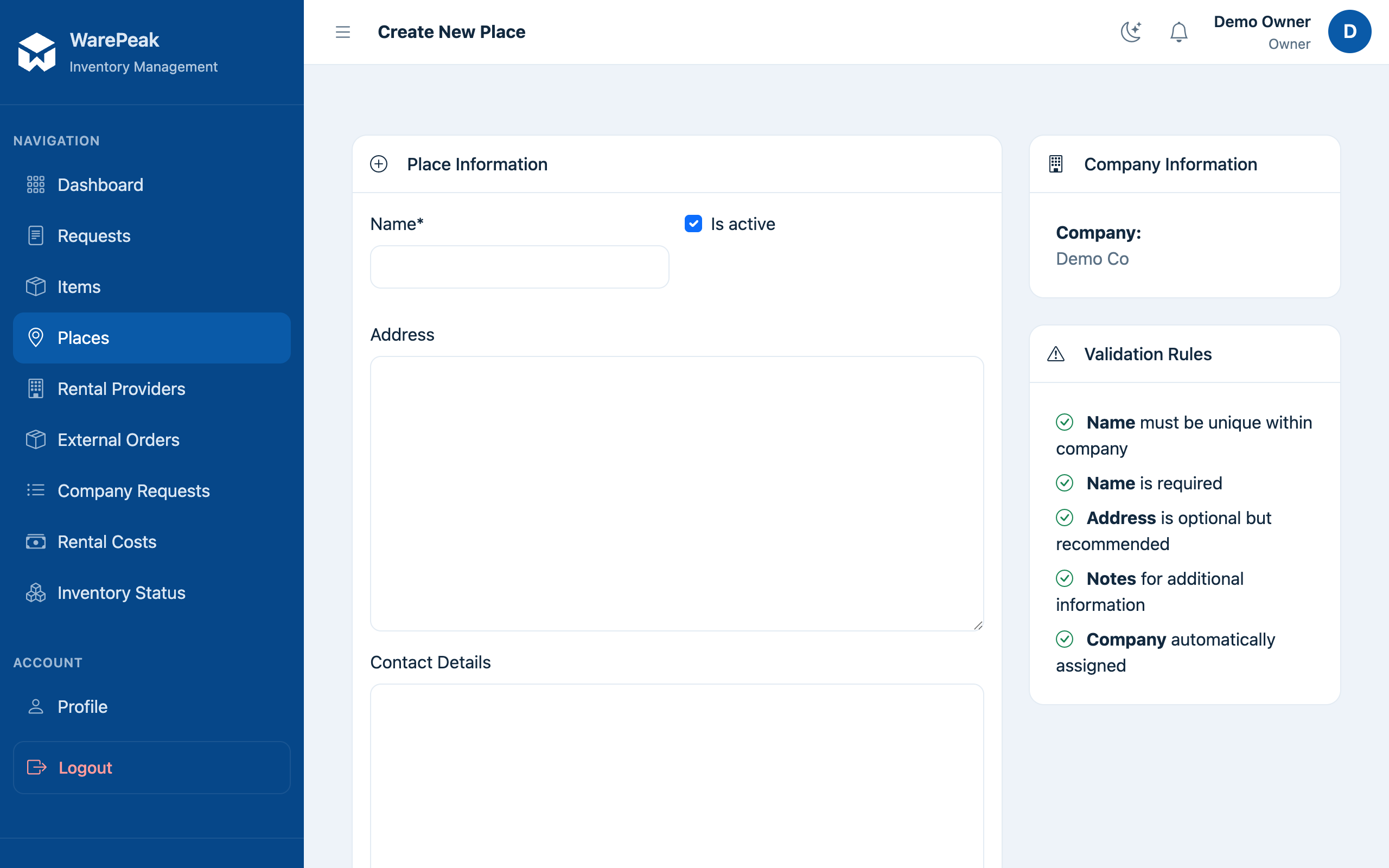
-
Fill in the place’s Name (required) and, optionally, the Address and Notes.
-
Click Save (or Create Place). You’ll return to the list or to the new place’s detail page, now ready to have users assigned and to receive ship requests.
Edit a place
⚠️ Only the Owner or Admin can edit places.
-
From the place’s detail page (
/app/places/<id>/), click Edit, or open/app/places/<id>/edit/directly.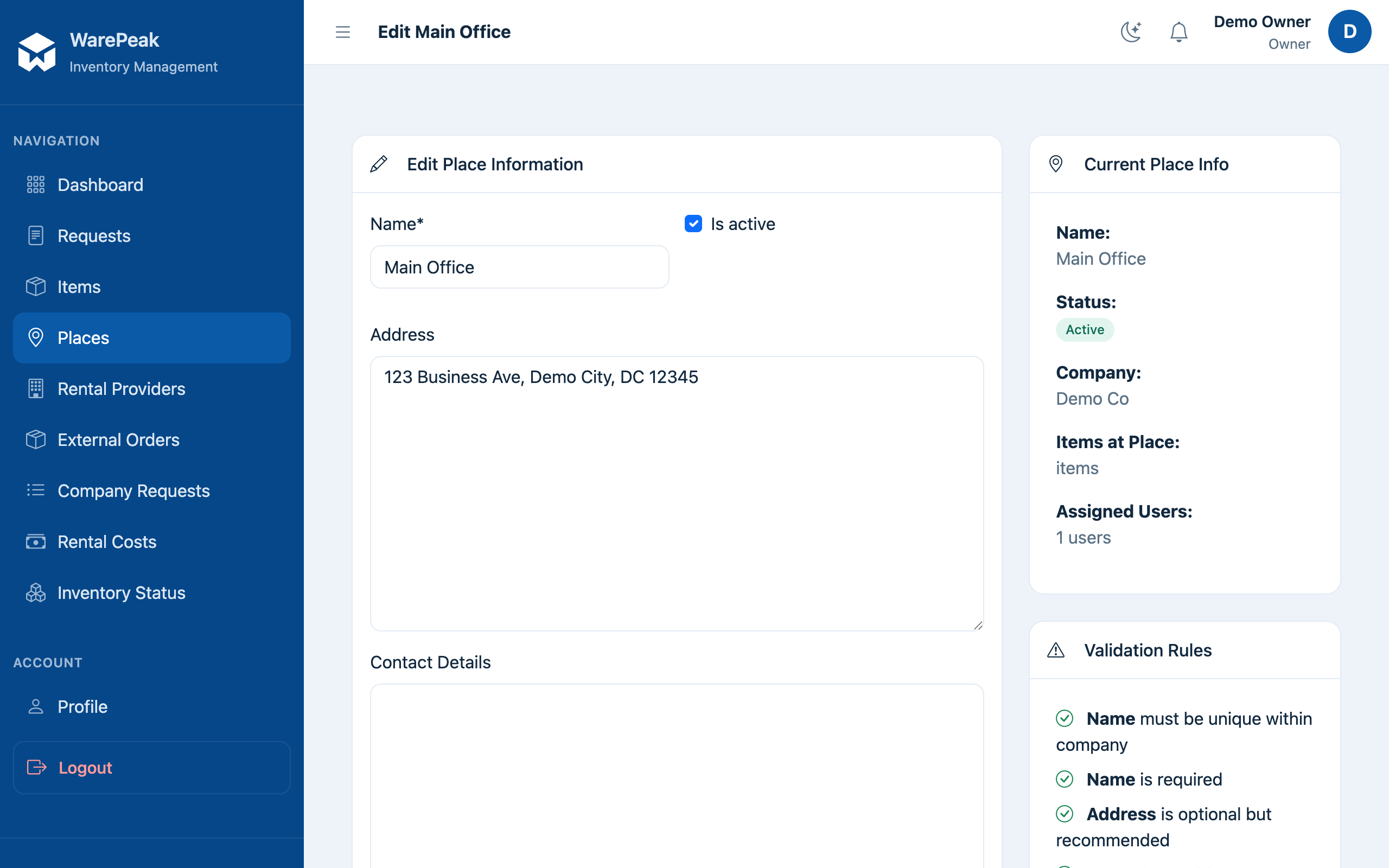
-
Change whichever fields you need (name, address, notes, active/inactive status) and click Save. You’ll return to the place’s detail page with the changes applied.
Assign users
ℹ️ Assigning a user to a place defines what that User sees on their dashboard and which places they can request from.
-
On the place’s detail page (
/app/places/<id>/), find the Assign users section.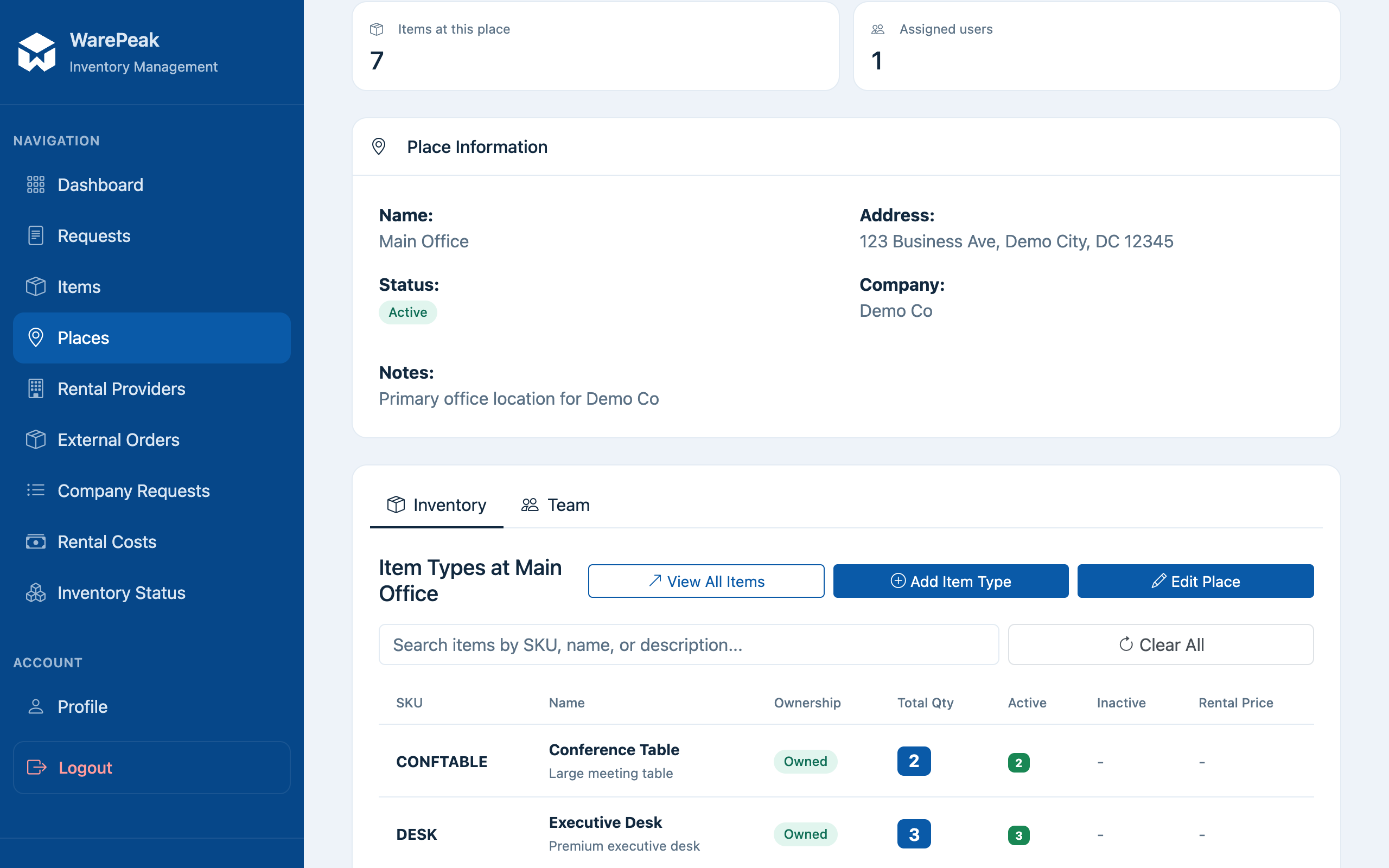
-
Use the Add User picker to search for and choose the user you want to assign to this place. Once confirmed, the user appears in the list assigned to that place.
-
To remove a user from this place, click the remove icon or button next to their name in the assigned list.